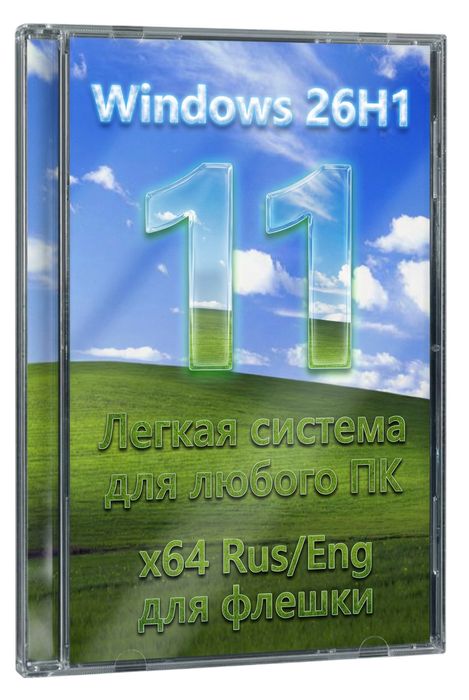
On February 5, 2026, a new update to the Windows operating system was released. For those who like to test all the innovations, an assembly has been created Windows 11 26H1 x64 Pro iso format for clean installation from a flash drive to weak and old computers as well. Minimum noise, no telemetry, built-in defender, the store can be returned, processors are cut down at startup, everything unnecessary is disabled, the scheduler is cleaned, forced downloading of updates is disabled. The result is an easy image with Windows 11 in Russian with automatic configuration and simple installation.
▫️ After the recording process has been completed, launch from the flash drive, we see the launcher, this is a shell that will help you set up everything before performing the actual installation. In this interface, I advise you to leave everything marked as is on the left; the necessary tweaks will be used to optimize, remove telemetry, and stop unnecessary things. On the right you can already adjust it yourself, such as whether you need a working firewall or not, whether you want to immediately install a free archiver to work with zip and other archives out of the box, or install your own later, you can disable account control so you don’t have to double-click and other parameters, including you can select activation via a MAS batch file, I advise everyone to use it.
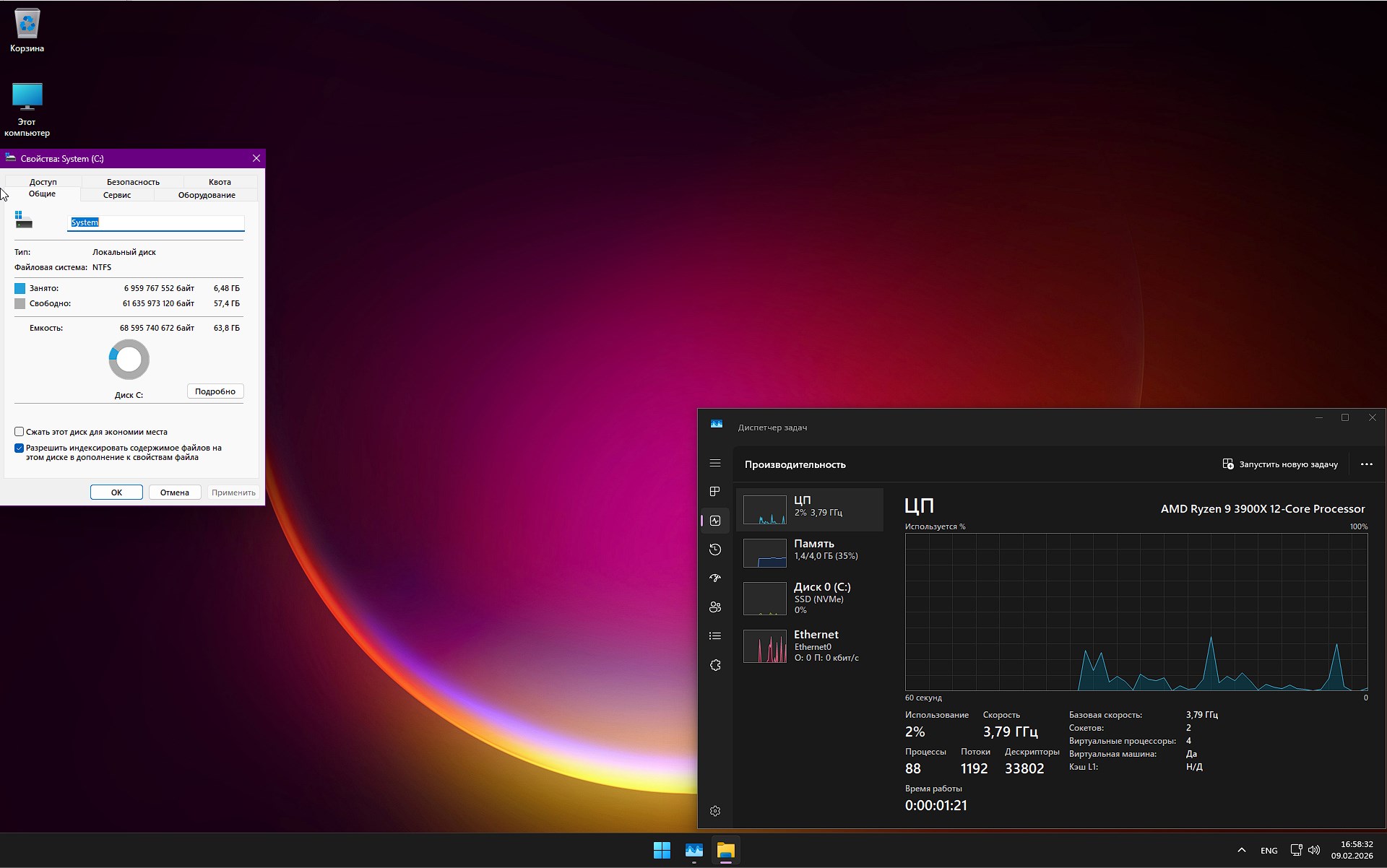
▫️ The lightest Windows 11 26H1 takes up seven gigabytes after unpacking, this is very little, so installing it on an old computer or laptop with a small hard drive is not a problem. In addition to the fact that there is nothing unnecessary and even more, you can easily update in the future, everything is paused, we launch it on demand. Leaving processes in the background does not load the CPU and consumes little RAM.
Features of the compact Windows 11 build with launcher
📌 Note: To successfully install the operating system, you will need a fixed USB; very often old media with bad sectors are used, which can lead to errors during unpacking
⚙️ Recommended system requirements for quickly launching Win 11 Rus Professional:
- CPU 2 cores 2 GHz, 64-bit support required
- 4 GB RAM, minimum 2 GB to run
- At least 10 Gigabytes of free hard disk space, the system after unpacking takes up about 7 Gigabytes
- For those who like to play, a video card with DX12 support
- Resolution from 720p otherwise programs may not be displayed correctly
- SecureBoot and TPM 2.0 restrictions have been removed
- Keyboard-mouse
🔹 Deleted moments:
- UWP has been removed, the built-in software is of little use, it weighs a lot, it interferes with the network, some transmit data about what is happening, collect statistics, and so on, all this is unnecessary, any program can be replaced
- The system does not have Defender, it has built-in anti-virus protection, it is needed to work with a PC in the database and not worry about downloading a virus or connecting a flash drive. This sounds interesting, but in fact it is a double-edged sword, since this protection greatly loads the system, and even on modern hardware there are problems. Since the assembly positions itself as Lite Windows 11 Rus x64, it would be a sin to leave it. You can install your own protection, which will cope much better and consume less resources
- The default Edge browser has been removed, it has certainly matured a lot, it offers a modern interface, it has become many times faster, it is more convenient to work in it, and so on. But I won’t praise it too much, I could go on and on about all the disadvantages, it’s very voracious in terms of memory and processor, the static on the hard drive is not bad, it leaves too many tails in the system, everything was cleaned, competently and without traces. Replacing with Yandex, which is the same Chrome current is configured to our realities, there is free AI, you can translate videos into Russian language online, consumes less memory than the same Chrome, in general the topic is normal
- No Steps Recorder, the same program, service that, according to the guys from Microsoft, will help solve problems. Like it records your every click, step, launch of programs and everything else. If suddenly an error occurs, a report is generated and the guys from the company see in detail what caused the problem. We can’t communicate with them, and we don’t need to transmit anything, that’s why it’s disabled
- There is also no text prediction, the same thing that on our smartphones helps to quickly type text, complements it, and you don’t even need to click anywhere. Again, don’t forget telemetry, the company analyzes what we write and so on, but why do we need this, you can add it yourself, that’s why no
- The math symbol recognizer is disabled. I really don’t know who needs this, it hasn’t been updated since Windows 7, as far as I remember, it’s like writing by hand, it translates into formulas, are you serious? No thanks needed
- Everything in the launcher hangs like advertising, all sorts of nonsense and so on, advertising is there, for this we thank the ContentDeliveryManager, which is not in this assembly, well, this is quite logical
- There is no quick help, it’s like TeamViewer only from Microsoft, I’m sure few people have used it. Out of the box you won’t be able to give access to someone, so you can install the same TeamViewer or other software like Anidesk, they work better, there’s more trust
- I’m tired of talking about Cortana, I repeat that it doesn’t really work in the Russian Federation, it’s of little use in general even when it works, it eats up resources like crazy, so it’s disabled
- OneDrive was deleted, including the folders where the installer was stored, just in case there was one, no thanks needed. You can reboot as much as you want, it will not appear in the system automatically.
- The GameDVR service has been removed; it is supposed to be for gamers, but in fact it is against them. It writes videos constantly, eats frames, analyzes, allows you to work with Xbox services, and so on. It’s a real disaster for weak PCs; those who want to record gameplay will install simpler and better software, but Xbox has long refused to work normally in the Russian Federation.
The list is small but quite logical, standard for most assemblies.
🔹 A few lines about the settings:
- All standard applications are blocked from collecting any data about you
- Synchronization with other devices is disabled
- Start will not display your most recently opened or frequently opened files.
- InPrivate data collection disabled
- Disabled remote user tracking
- There is no basic system recovery, that is, if a critical error occurs, you cannot roll back using standard means. It sounds dangerous, I understand, but it saves a lot of space once or twice, you can install any software for backup and it will be many times better and provide more opportunities, you yourself will control the process and so on. The standard method often works crookedly and few people use it at all, this is a fact
- In order for the search to work instantly at startup, WSearch is used and it is disabled in this build, I’m ready to wait a little longer, but the hard drive will last longer and the processor will not be loaded
- SSD SysMain is practically useless, this service monitors what you launch more often and loads this software into memory, for example, I think the words analyzer and load speak for themselves
- I think there’s no point in talking about ReadyBoot, we’ll feel sorry for the old HDD and the new SSD and Nvme don’t need it
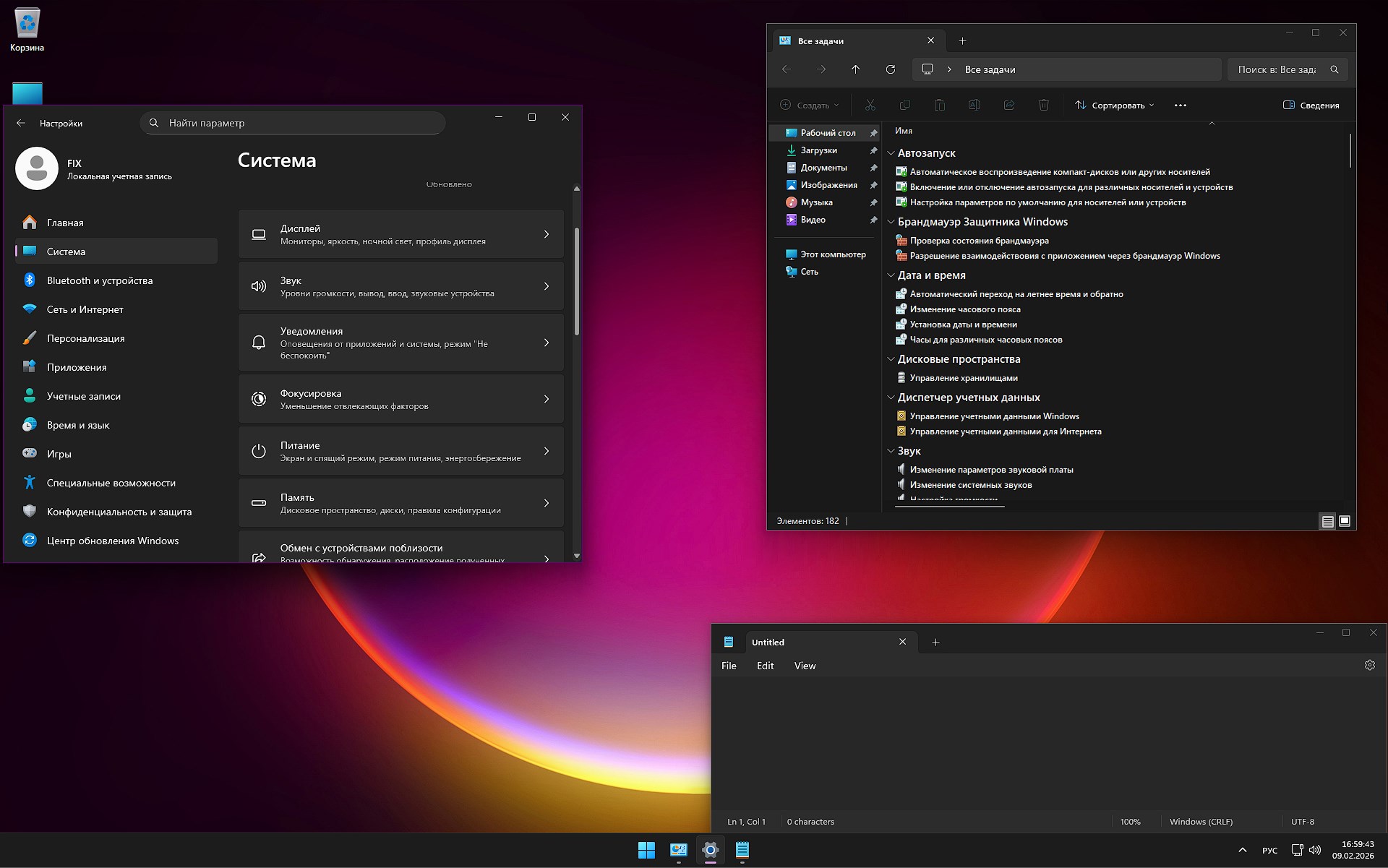
- The context menu has been cleared of debris, plus the appearance has been changed to the familiar one, not modernized, it’s easier to work, more pleasant to look at, the response is faster
- If you like the lock screen, it’s here, it just won’t blur, like less load, little things for many, but on older PCs even this is important
- Reserved storage is disabled, this is a type of space that is always free so that the system can be updated, but you have more space, but you may never install updates, as I say, but if you just keep an eye on the free megabytes yourself
- If the error is critical, when the blue screen of death is in front of us, there will be no reset, you will have time to understand the error and find a solution
- To view pictures, a photo viewer is included, it is the simplest and most familiar, the fastest, and does not consume almost anything unnecessary
- A PC shortcut appeared on the desktop
- RMB on the shortcut This computer will open a new menu in which you can quickly access important settings, the registry, hidden system parameters, including
🔹 Useful:
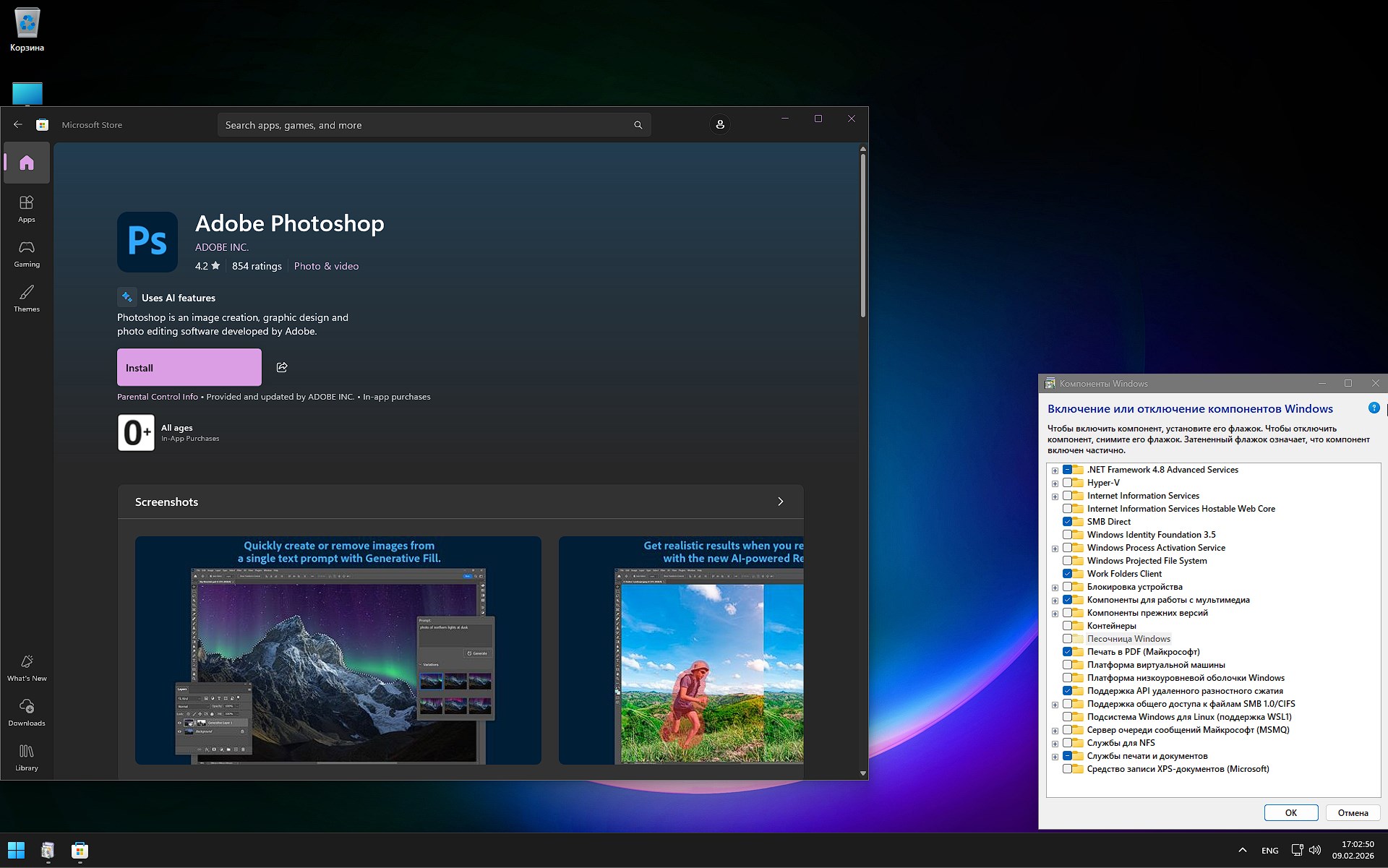
▫️ Initially, there is no store from Microsoft. If you really need it, returning it is not a problem, you can see it in the screenshot. We open CMD with administrator rights or powershell, there is no difference, everything is searched through Start – search. After starting, we immediately enter the command wsreset -i and usually wait a couple of minutes, if there is Internet, the store will be restored, it will appear in the launcher. After we launch and download everything you need, you may not be able to buy it, since the component is cut out and downloading is not a problem.
▫️ About activation, there is nothing on the desktop, nothing is done automatically, you yourself regulate this moment through the launcher. Those who need activation simply check the box; those who don’t, don’t check anything and use their own method.
▫️ Installation is almost automatic. After starting from a flash drive, there is no greeting, we just select the partition where we need to unpack the assembly, a clean formatted partition, not an update on top, that’s the only way. Next comes the unpacking itself, rebooting, launching a window in which you already need to specify the username and that’s it, here’s the desktop, so there’s a minimum of action on your part, even a beginner can handle it.
▫️ Compact, lightweight Windows 11 x64 Rus is written onto a clean flash drive. You need to prepare a flash drive, you can write it through software like Rufus or through UltraISO – if you decide to use it, then after saving the iso image, run UltraISO and select open – there we look for the image, after Bootstrapping – write the disk image – that’s all, format the flash drive and write the image, then connect it to the PC, reboot, Boot menu in which you need to select USB with Windows 11 and the process starts on its own, as simply as possible.
Please note that after the first launch, I advise you to wait a couple of minutes until all the settings are applied, and then I again advise you to restart the PC, after that just look at the running processes and the memory consumed, everything will be fine. The build came out great, those who like to test everything new, those who want to get a stable release that will work perfectly on an old PC and new hardware, you can play, watch videos, open many tabs, the system is configured for maximum interaction with the hardware, and then it depends on its parameters, good luck to everyone!
Download Windows 11 26H1 Rus Pro for laptops and computers – clean installation from a flash drive
Additional mirrors:
💡 Quick links are available above using the buttons, select the desired mirror and save the image, if you need a torrent distribution, you need to go higher and click on the green button
Some builds may come pre-installed with a browser and add optional components for Chrome; If desired, they can be easily replaced with your own. All images undergo a mandatory anti-virus scan before being published on the site: all content is fully scanned for the presence of malicious files. The settings remain under your control and can be changed in a couple of clicks if necessary. Often, integrated activation tools are replaced with text-based registration recommendations - this is done to minimize false positives.
Contraseña
[HIDE]rsload[/HIDE]
Leave a Reply